Worked example · Public station
Worked example: signing off a station's public Wi-Fi
How a consultant could agree the requirements, walk the concourse and sign off the public Wi-Fi at a busy commuter station, with a real nOversight report read line by line.
Updated
This is a worked example, not a customer case study. It shows how a consultant could use nOversight to test and sign off the public Wi-Fi at a busy London-style commuter station. The figures come from a real report: the author walked through the station on a normal commute, connected to Station Wi-Fi. Along the way you will see how to read a report, line by line.
Agree the requirements up front
It is easy to over-specify a network, with coverage everywhere, in every corner and round every pillar. In reality, people need to use their phones in a few key places: by the departure boards, at the ticket gates and in the seating areas.
Setting the requirements correctly can be the difference between an expensive install and confirming you have put in just enough to keep commuters happy. For a station like this, you could agree requirements along these lines for the scenario:
- Signal and quality: typical values for signal strength and quality, not the highest possible.
- Speed: in this scenario, a fast, low-latency service isn’t required. We assume voice calls mostly go over the mobile network, and the Wi-Fi isn’t there for serious gamers.
- Devices: mostly phones, but people use laptops in the seating areas and where they eat and drink, so you would test with those too.
- Roaming: handovers don’t need to be perfect. In this scenario a slightly longer roam time is acceptable, because the network isn’t meant for unbroken voice calls.
- Conditions: a normal working day with a normal crowd.
Set the same levels in nOversight, so every reading is checked against what was agreed.
Walk the concourse and visit the key locations
Walk each route at walking pace, in both directions, and spend a few minutes at the key locations: the departure boards, the ticket machines and each set of entry barriers.
Record on an iPhone or iPad with nOversight Pro. As you walk, nOversight records events outside the agreed requirements, and with the AR view open it can save a picture of where you were. You are in a public place, so switch on the privacy filter in the AR view: it blurs the camera picture to help avoid capturing people’s faces. Check the pictures before you share them.
Once you’ve finished, take a sysdiagnose on the same phone as soon as you can. As a rule of thumb, aim for within 30 minutes of starting the walk: the sooner you take it, the better the chance that the logs still cover the whole walk. A sysdiagnose holds far more than the phone shows in real time. Import it into nOversight (on iPhone or iPad this needs Pro) to reveal retries, channel busyness and Apple’s own record of each roam.
If you’d rather see all of those metrics in real time, connect the phone to a Mac and record it there with Mac Pro instead.
Then build the report on the Mac with Mac Pro. Adjust the requirements there too, and enter the site details, the tester and your notes. The report lists the findings in priority order, which is perfect for sharing with the customer and talking through any fixes.
Reading the summary, line by line
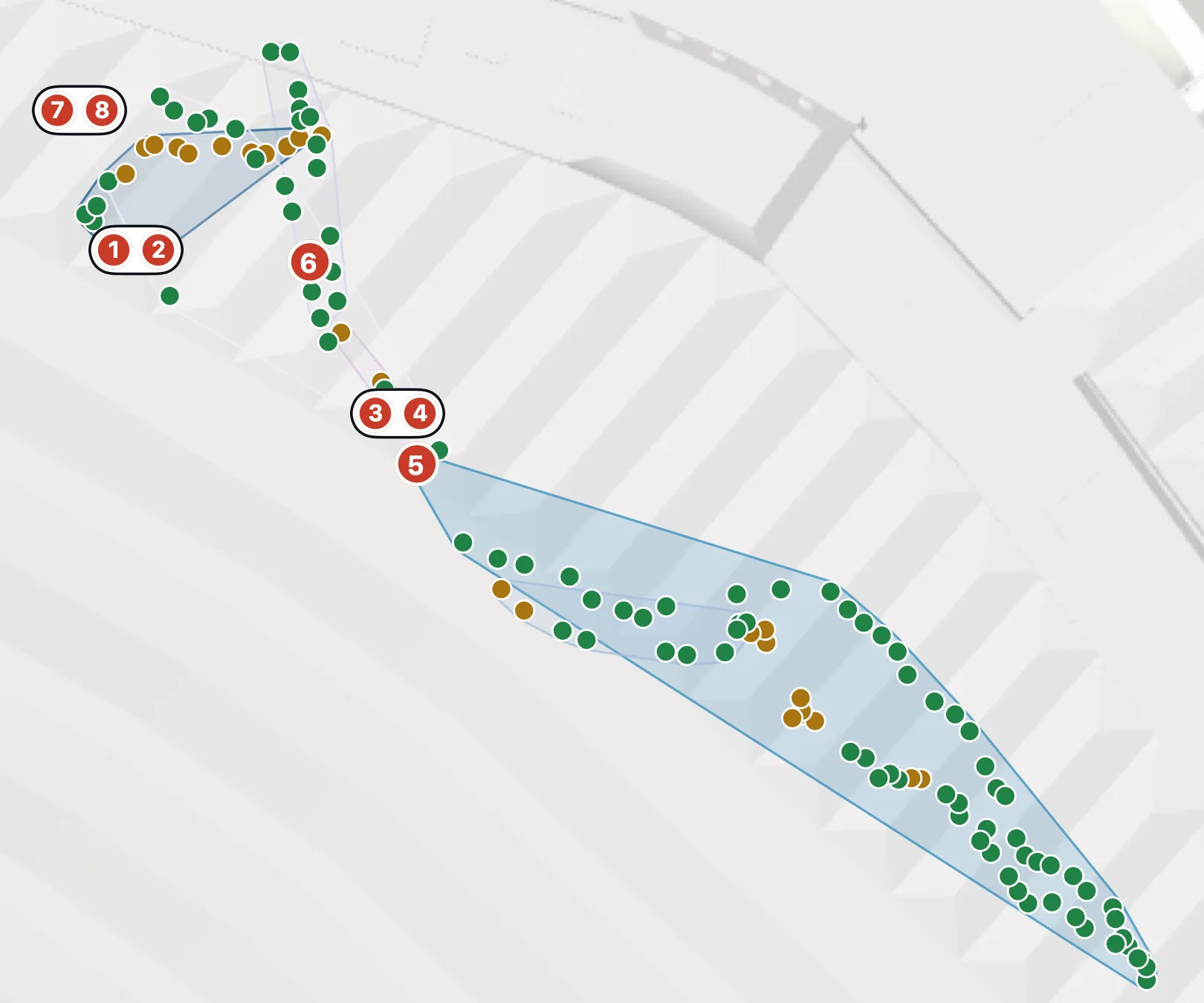
The walk lasted 6 minutes 51 seconds and passed 7 access points on 2.4 and 5 GHz, giving 124 test points. The report summary said that Coverage, Quality, Performance and Environment met the requirements, and that Mobility needs attention.
The results use P95: at least 95% of valid readings were this good or better. Look at the charts and findings too, because the worst 5% can still hold events worth investigating.
Mobility: roam time 5730 ms at P95, against a 1000 ms maximum. Nine of the ten handovers were clean. With only ten roams, P95 sits close to the slowest one. The event report shows exactly where that slow roam happened on the map, with a picture from your privacy-filtered phone camera. We said we weren’t too worried about slow roams, but it’s worth keeping in mind in case it points to another problem. If it happens again on a repeat walk, you have a specific place and handover between access points to investigate. Maybe an access point is out of action.
Internet response: 868 ms at P95. The report assesses the end-to-end internet response separately, using the fantastic, lightweight orb.net, which is just right for a place like this. It doesn’t change the Wi-Fi verdict, but it tells you how people will experience the internet overall. In a public walk test, it belongs in the report as a separate note for whoever owns the internet connection.
Environment: others’ airtime 66% at P95. That’s airtime used by every other Wi-Fi device the phone could hear: other people on Station Wi-Fi, other networks in the station and hotspots on people’s phones. A busy station shares its channels with a lot of devices, and the result still met the requirement that was set. That’s good news, and it’s also a useful input to a channel plan review: if a group of access points sits in one place, re-planning their channels could improve things for everyone.
Performance: link rate 103 Mbps at P95. This is the negotiated rate, not throughput. It tells us the speed our device can reach to the access point, not to the internet. The 11 speed tests during the walk had a median of 100 Mbps, which is more than enough for a public space. There’s not much to worry about here. The walk was at a busy time, so this is a fair picture of how the network held up under load on that day.
The final report
We now have a real insight into what it’s like to use the Wi-Fi at a busy station, and it was not bad. The report would support a discussion with the station’s owner: people could connect and walk around while staying connected. They can reach the internet; it may feel a little slow at times, but it’s plenty for checking train times and the other things people do in a station.
The walk also found a large area covered by a single access point. At the edge of it, the phone chose 2.4 GHz because it reaches further. That edge is near a departure board, so an extra access point there would be worth discussing: a fairly cheap fix. And because the channels weren’t too contended, another access point looks likely to fit in, though you’d confirm that with a walk after it goes in.
The report records one device on one day. It supports a sign-off for the tested scope on that day; another busy period, or a day with an event on, may look different, so it’s worth repeating the test regularly. The great news is that you can do all this with just a phone. There’s no expensive equipment to own, and the local IT team can repeat the walk whenever they want and update the report.