Worked example · Airport terminal
Worked example: walking an airport terminal's Wi-Fi
How a Wi-Fi professional could check coverage and roaming through an airport terminal, where travellers are always on the move, with a real nOversight walk read line by line.
Updated
This is a worked example, not a customer case study. It shows how a Wi-Fi professional could use nOversight to check coverage and roaming through an airport terminal. The figures come from a real walk through a terminal on Airport Wi-Fi. Along the way you will see what a long walk through a large building looks like, and what to do with what it shows.

Agree the requirements up front
An airport is different from most buildings: almost everyone is on the move. Travellers walk from the entrance to check-in, through security and on to the gates, often with a phone in one hand and a bag in the other. They check their boarding pass, message someone to say they’ve landed, or join a call while they walk.
So the requirements are about two things: coverage where people stop, and clean handovers where they walk.
- Coverage: a signal target and a minimum for the places people stop: check-in, the seating at the gates, the cafés and the arrivals hall.
- Roaming: the phone should move to the next access point before the signal drops below the minimum, so people stay connected as they walk the length of the terminal.
- Devices: mostly phones, with some laptops at the gates. Test with the phones travellers are likely to carry.
- Conditions: a normal day with normal passenger numbers. An empty terminal is kinder than a busy one.
Set the same levels in nOversight, so every reading is checked against what was agreed.
Walk the terminal the way travellers do
Walk the routes travellers take, at their pace, in both directions: entrance to check-in, check-in to security, security to the gates. Stop for a few minutes where people wait, such as the gate seating and the arrivals hall.
Record on an iPhone or iPad with nOversight Pro. As you walk, any event outside the agreed requirements is captured and saved with a picture of where you were. In a public place, switch on the privacy filter in the AR view to avoid capturing people’s faces.
Then take a sysdiagnose on the same phone as soon as you can; we find within 30 minutes of starting the walk is best. Import it into nOversight (on iPhone or iPad this needs Pro) to add retries, channel busyness and Apple’s own record of each roam. Or connect the phone to a Mac and record there with Mac Pro, which shows those metrics in real time.
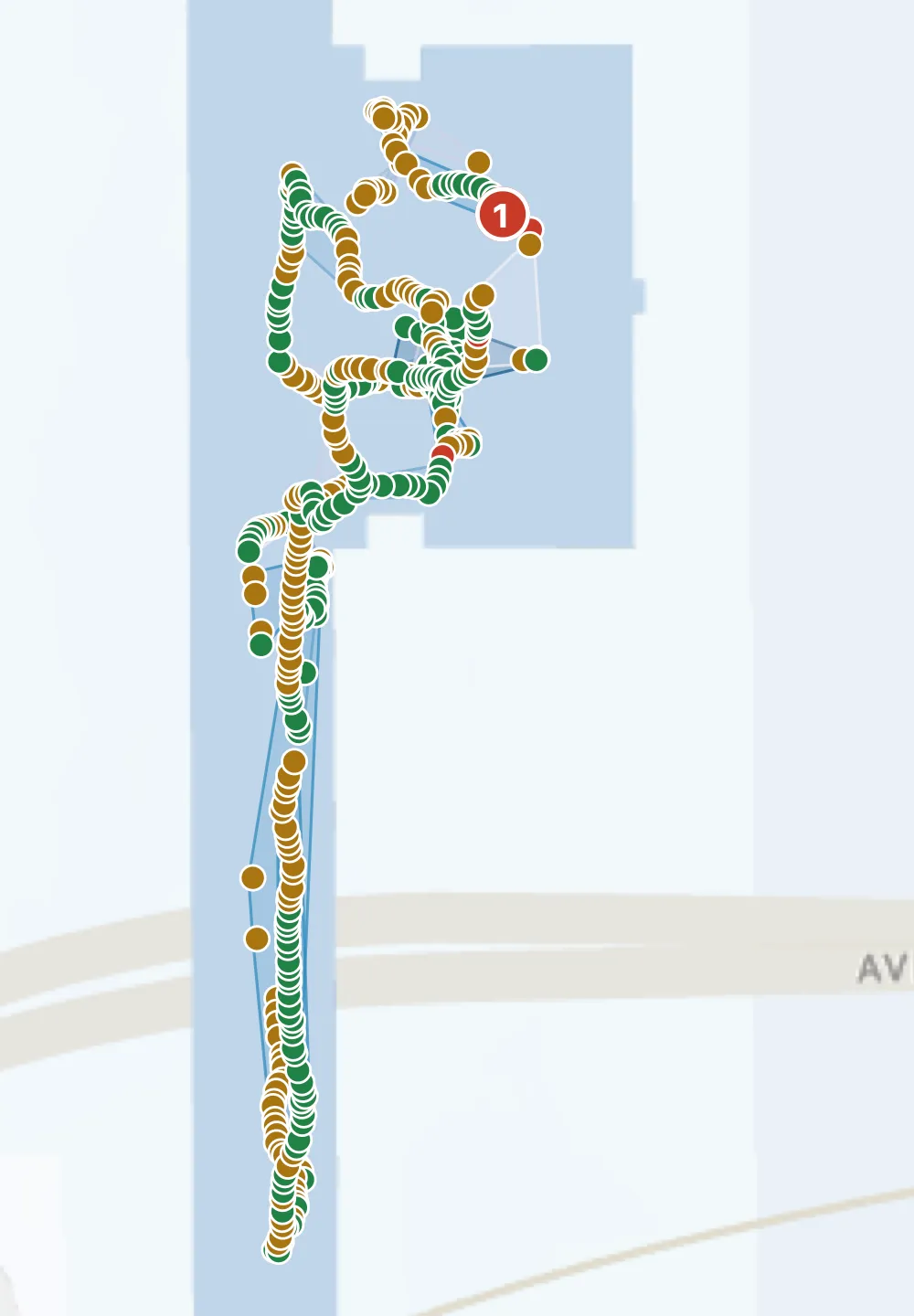
Reading the walk, line by line
The walk lasted 11 minutes 44 seconds and produced 393 test points. That’s a long walk through a big building, and it gives a lot to go on.
Coverage: 99% of signal readings at or above the minimum. This is great news. Almost everywhere the phone went, it heard an access point well enough. Check the map for the few readings that fell short, and whether any of them are where people stop.
Roaming: 31 roams, typically at −73 dBm, give or take 2 dB. Phones of one type tend to leave an access point at a similar signal level, and this phone was very consistent. Compare that level with the edge of each access point’s area in the design. If the phone holds on to an access point for longer than the design assumes, the walkways need more overlap than planned.
Overlap: 4 places where access points may not overlap enough. nOversight marks places on the map where neighbouring access points may not overlap enough for a clean handover. Coverage measured point by point doesn’t show whether the phone could move cleanly from one access point to the next. That’s why a 99% coverage result can still sit alongside four overlap findings.
The final report
We now have a good picture of what it’s like to walk through the terminal on Airport Wi-Fi. The report would support a discussion with the terminal’s owner about coverage, which was strong: almost every reading met the minimum. The phone roamed at a consistent signal level, which makes it easier to plan around.
The four overlap findings are the places to go back to. Walk through each one more slowly, in both directions, and check whether the phone left late or whether the next access point was simply weak there. Either way, you have a specific place and a specific handover to look at, rather than a vague complaint about “the Wi-Fi at the gates”.
The walk records one device on one day. It doesn’t replace a predictive design, the controller’s view of every client, or a spectrum survey. But because you can do it with just a phone, it’s easy to repeat after a change, or on a busier day, and see whether the four places have gone.
Find the edge of coverage · Troubleshoot a user’s Wi-Fi · Mac