Professional workflow
Troubleshoot a user's Wi-Fi where the problem happens
A user says calls drop in one meeting room, or on the walk between floors. Reproduce it on their kind of device, read what the device did, and hand over evidence someone else can check.
Updated
The short answer: go where it happens, with the user’s kind of device, record what it did and hand over the readings around the drop.
The situation
“Teams calls drop in meeting room 3.” “It cuts out between the lift and my desk.” The controller shows everything up and associated, and the ticket stalls, because nobody has watched the connection from the user’s side.
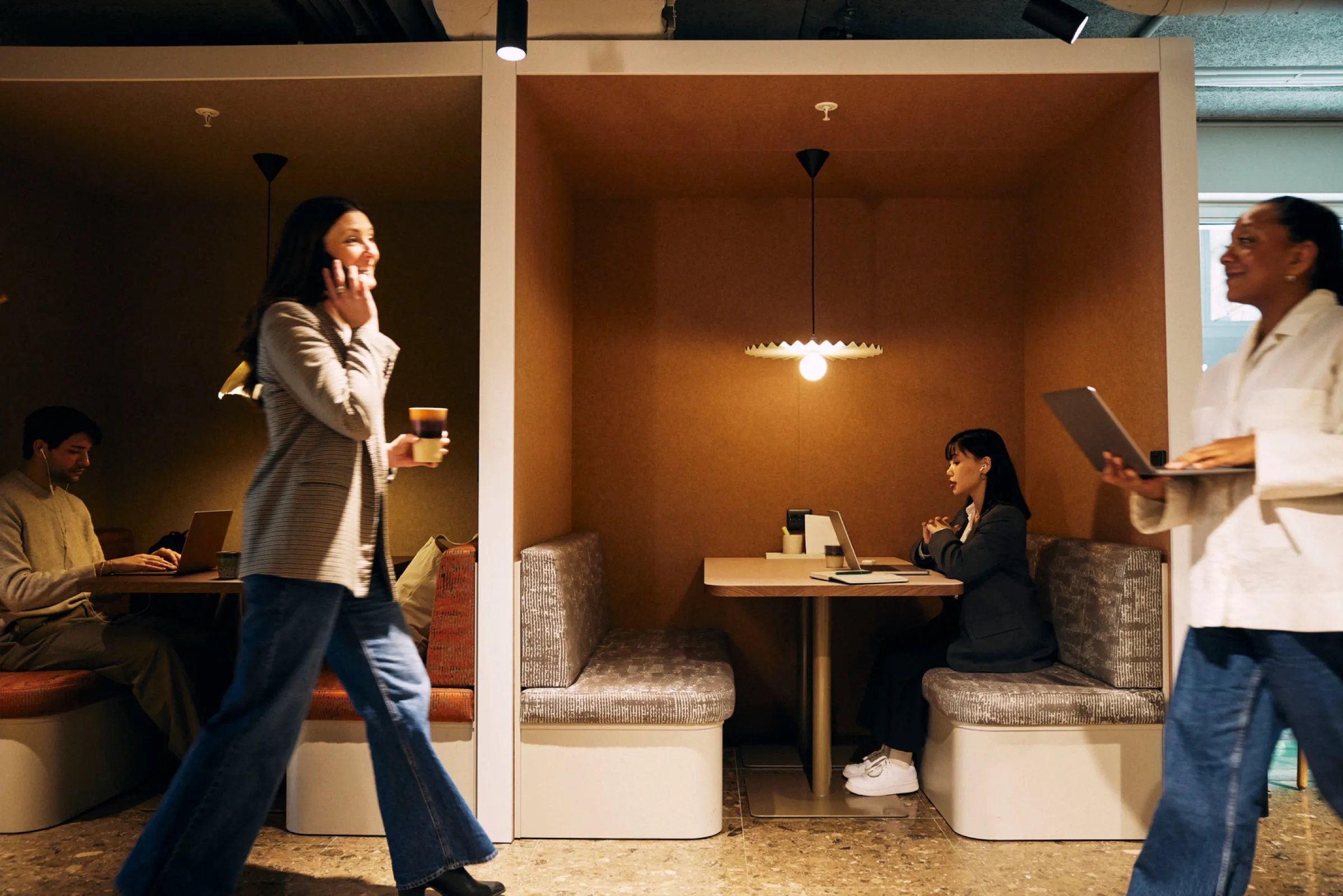
First pin down the device and its software version, the place, the time of day and what the user was doing. A drop that only happens on a call while walking is a roaming question; one at a desk is not.
Three steps
1. Use the right device
Use the user’s device, or the same model on the same software version. Different models roam differently on the same network, so your own phone may not reproduce it.
2. Reproduce it
Sit where the user sits for several minutes with a call or stream running, or walk their route at walking pace, more than once, in both directions.
- On iPhone or iPad with Pro: record the session, then take a sysdiagnose on the same phone soon after and import it to add retries, channel busyness and Apple’s own record of each roam.
- On a Mac with a connected iPhone: connect the phone over USB or the network and the Mac reads its diagnostic detail as it happens. Over the network, you can walk while the Mac stays put.
3. Read what the device did
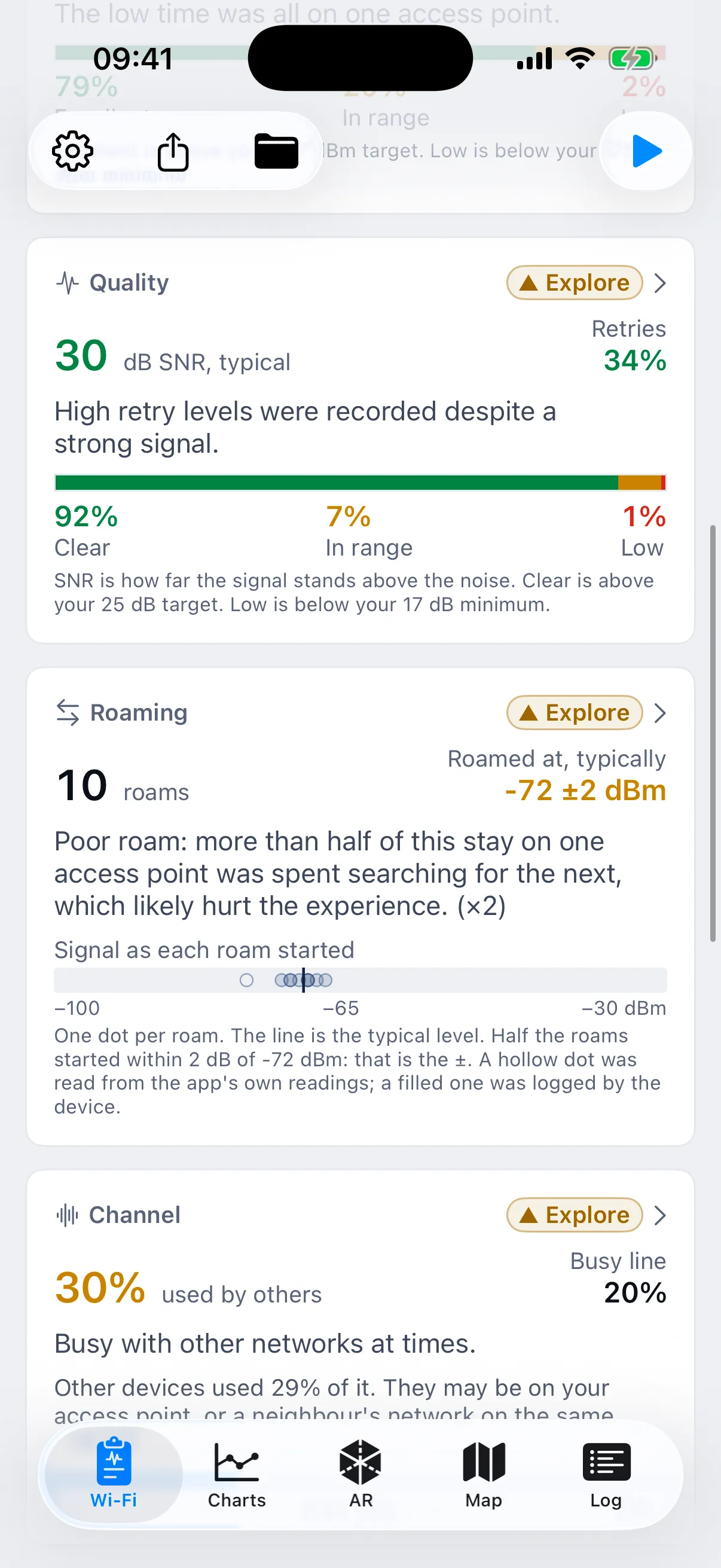
Each roam appears as an event with its time, the signal as the phone left and how long it took to settle. Around the drop, look for a roam far slower than the others, the phone clinging to a weak access point, retries climbing while the signal looks fine, and, if speed tests ran, router delay against internet delay.
The evidence
What it means
| Observation | Possible explanation | Next check |
|---|---|---|
| One slow roam at the same spot every pass | The next access point is weak or slow to accept the phone | Repeat with a second device; check that access point’s logs |
| The phone stays on a distant access point | Its roaming threshold is lower than the design assumes | Compare its roam signal with your design’s cell edge |
| High retries, strong signal | A busy channel or interference there | Check channel busyness at those times; retest at another hour |
| Wi-Fi steady, internet delay spikes | The problem is upstream | Hand the times to whoever owns the WAN or firewall |
Link rate is the rate the phone negotiated, not what it delivered, so keep it apart from speed test results. A finding is a reason to look somewhere, not proof of a single cause, and one device doesn’t describe every client.
What to do next
Hand over the evidence: the device and software version, the place, the time window, what the user was doing, and either:
- from iPhone or iPad with Pro, a CSV of the recording, with Mask Personal Data on to obscure network names and access point addresses and offset the locations;
- from Mac Pro, a PDF report scoped to the time window.
Read the file before you send it (what each one contains), and pair it with the controller logs for the same minutes.
Retest after the fix with the same device, route or seat, directions and time of day, and keep the before and after captures together.
Recording and diagnostic import on the phone need Pro for iPhone and iPad. Live analysis of a connected phone is in Mac Basic; recording and PDF reports need Mac Pro. The two are licensed separately: see pricing.